Facebook-f Twitter Svg Instagram Youtube
Geekman logo Geekman logo
  • Best BuyTop 5
    AUDIO

    Best Earbuds ›

    Best Earbuds Under  5000 HOT

    Best Earbuds Under  3000 HOT

    Best Earbuds Under  2000 

    Best Earbuds Under  1000 

    Best Earbuds Under  10000

    Best Headphones ›

    Headphones Under 1000

    Headphones Under  5000 NEW

    Wired / IEM ›

    Best IEMs Under 2000

    Best Earphones Under 1000

    Best Earphones Under 500

    Wireless  ›

    Neckbands Under 2000

    Audio Speakers  ›

    Soundbars Under 10000

    Soundbars Under 5000

    Bluetooth Speakers Under 2000

    LAPTOPS

    Best Laptops ›

    Best Laptops  Under  30000 HOT

    Best Laptops Under 35000 HOT

    Best Laptops Under 40000

    Best Laptops Under 50000

    Best Laptops Under 60000

    Best laptops Under  80000

    Laptops Under  25000

    Laptops Under  20000

    Best Gaming Laptops ›

    Gaming Laptops Under 50000

    Gaming Laptops Under 60000

    Gaming Laptops Under 70000

    Gaming Laptops Under 80000

    Gaming Laptops Under 1 Lakh


    PHONE & ACCESSORIES

    Best Smartphones›

    Phones Under 7000

    Phones Under 10000

    Phones Under 15000

    Phones Under 20000

    Phones Under 25000

    Phones Under 30000

    Phones Under 50000

    Phone Accessories›

    Best Power Banks In India

    Power Banks Under 2000

    Power Banks Under 1000

    Power Banks Under 500

    Best SmartWatches›

    Best Smartwatches In India

    Smartwatches Under 10000

    Smartwatches Under 5000

    Smartwatches Under 3000

    Smartwatches Under 2000


    PC & GAMING

    Mouse ›

    Gaming Mouse Under 5000

    Gaming Mouse Under 3000

    Gaming Mouse Under 2000

    Gaming Mouse Under 1000

    Gaming Mouse Under 500

    Keyboard›

    Gaming Keyboards Under 5000

    Gaming Keyboards Under 2000

    Gaming Keyboards Under 1000

    Gaming›

    Best Gaming Chairs In India

    Gaming monitors under 20000

    Gaming monitors under 10000

    Gaming Controllers Under 2000

    Gaming Keyboards Under 1000


    OTHERS

    Personal Care ›

    Trimmers Under 1000

    Trimmers Under 1500

    Smart Devices ›

    Smart Speakers Under 5000

    Best WiFi 6 routers

    Best UPS For WiFi Routers

    Best WiFi Range Extenders

    Cameras ›

    Sports And Action Cameras Under 10000


    HOME APPLIANCES

    Best Water Purifiers In India

    Best Robot Vacuum Cleaners

    Best Air Fryers Under 5000

    Best Water Purifiers Under 10000

    Best Refrigerators Under 20000

    Best Air Purifiers In India


    TRENDING BUY GUIDES
    AC Buying Guide India
    AC Buying Guide India 2026: Read Before Buying AC in India!
    Water Purifier Buying Guide
    Water Purifier Buying Guide India 2026 — What No One Tells You Before Buying
  • Reviews
  • Best Of
  • Entertainment
  • Gaming
  • News
  • Video
  • Geekman Unbox
Reading: How to connect a Pendrive to Phone (Updated 2024)
Share
  • 🔥 Trending:
  • Best Earbuds Under 5000
  • Best Gaming Laptop
  • AC Buying Guide
  • Earbuds Under 3000
Font ResizerAa
GeekmanGeekman
Search
  • Best BuyTop 5
  • Reviews
  • Best Of
  • How To & Guides
  • Gaming
  • News
  • Entertainment
  • Top 5
  • Video
  • Geekman Unbox
Follow US
  • About Us
  • Contact Us
  • Privacy Policy
  • Advertise With Geekman
  • Career
  • Press Kit
© 2025 geekman.in. All Rights Reserved.

Home » How to connect a Pendrive to Phone (Updated 2024)

How To & Guides

How to connect a Pendrive to Phone (Updated 2024)

Last updated: 20/04/2024
By
Mayur Dudharejiya
ByMayur Dudharejiya
Mayur Dudharejiya is known as the 'Geekman' on Youtube. He is the Admin and Executive Editor of Geekman. When he's not writing or making videos, then...
Follow:
18.5K Views
Share
2 Min Read

Connecting an external storage device like Pendrive to your smartphone is a convenient way to expand your phone’s storage. Everyone knows the pros of Pendrives, like easily carrying hundreds of GB of data or storing media files when you’re running out of storage on your phone. 

The process of connecting the Pendrive to a phone is straightforward and involves a few simple steps. Here is a brief guide on How to connect a Pendrive to a phone using an OTG cable in Android and Lightning to a USB adapter in Apple.


Things needed to connect Pendrive to your Smartphone

A USB OTG cable (For Android)

OTG(On The Go) cable(USB to Type-C) is the tool that will help you connect Pendrive to your Android phone. Since you can’t directly connect a flash drive/Pendrive to your phone, you have to use an OTG cable. It is a hub to connect Pendrive’s USB and Android’s Type-C end. 
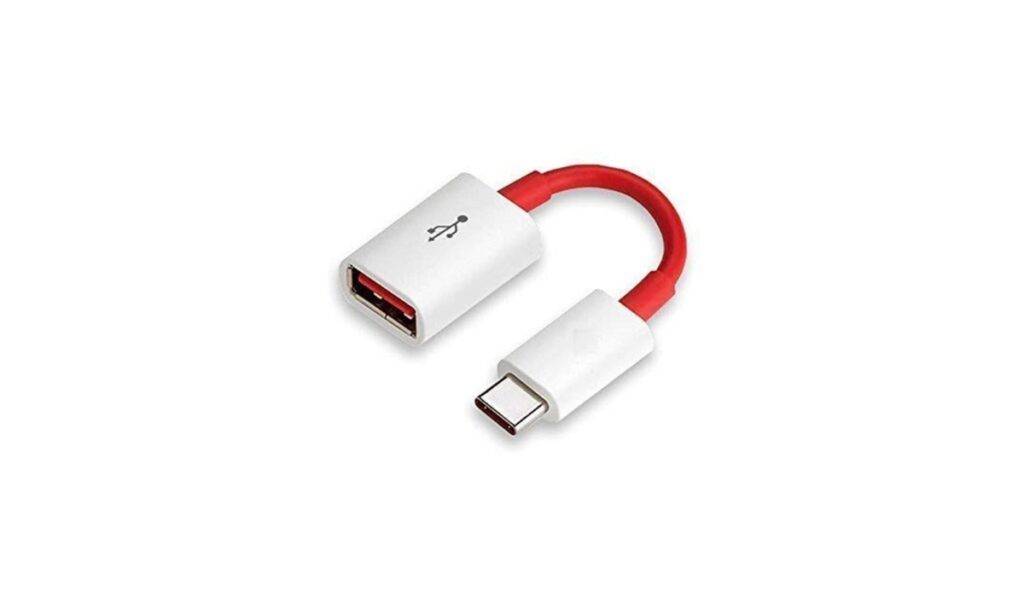
USB OTG Cable

A Lighting to USB Adapter (For IOS devices) 

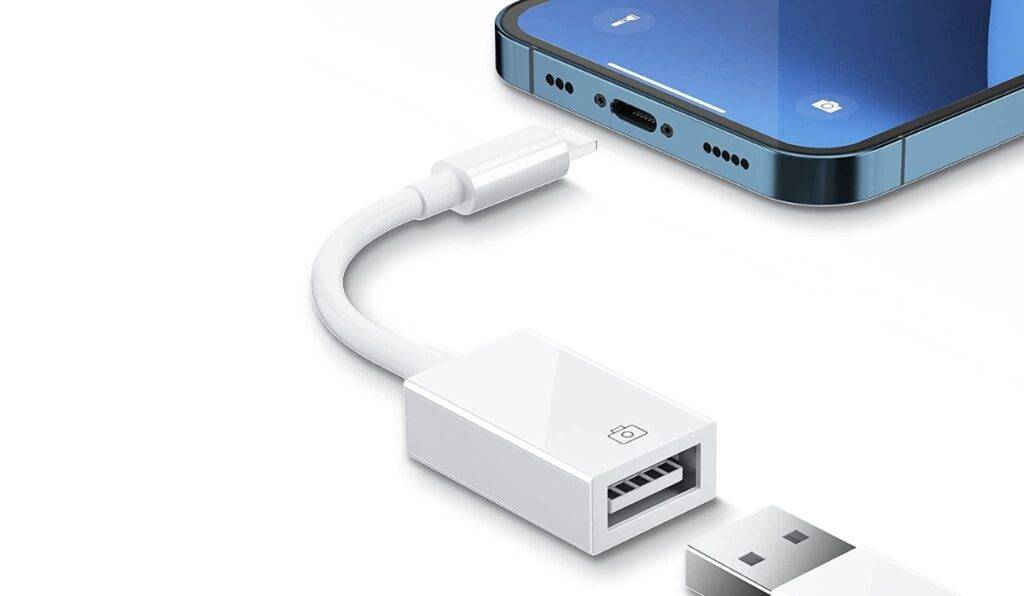
You need a Lightning to USB adapter to connect a Pendrive to your iPhone or iPad. Since iPhones and iPads don’t have the standard Type-C Charging port, You can’t use the OTG cable meant for Androids. 
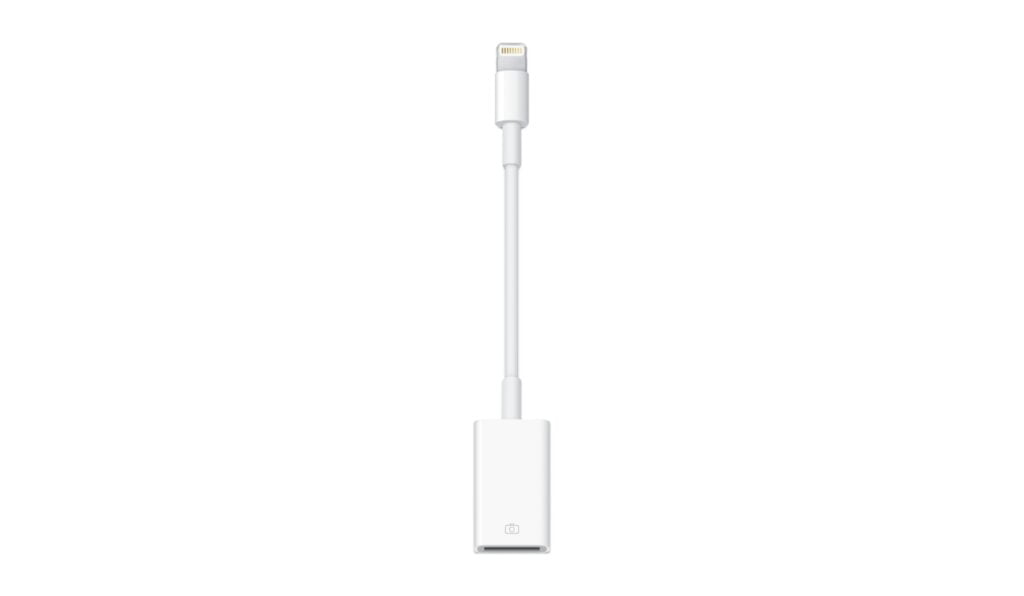
Lighting to USB Adapter

How to connect Pendrive to an Android phone? 

As mentioned above, you need an OTG cable to perform this task. Now, the steps to connect a pen drive to an Android phone:

Step 1: Insert the USB OTG (On-The-Go) cable into your Android smartphone’s charging port.

Step 2: Plug the other end of the USB OTG cable into the female connector of the USB flash drive/pen drive.

Step 4: Once connected, your Android phone should automatically detect the USB flash drive and open the file explorer or file manager app.
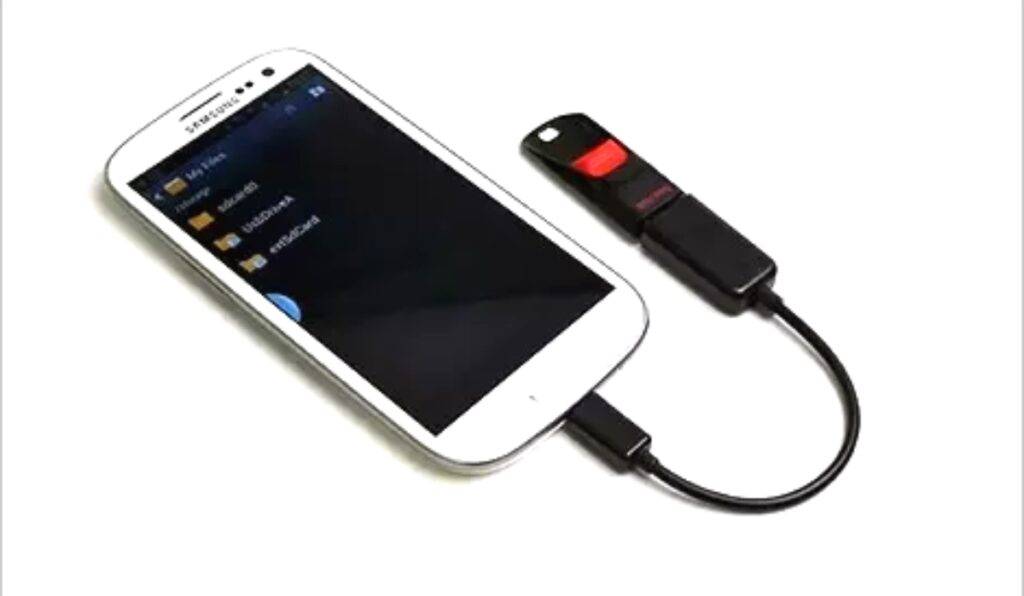
Connect Pendrive to an Android phone

Step 5: Now, you can access and manage the files stored on the USB flash drive directly from your Android phone.

To transfer or play media files, navigate to the desired file on the USB flash drive.


How to connect Pendrive to an iPhone? 

To connect a USB storage device to your iPhone or iPad using a Lightning to USB adapter, follow these steps:

Step 1: Plug the Lightning connector of the adapter into the charging port of your iPhone or iPad. Make sure it is securely connected.

Step 2: A USB port will be on the other side of the adapter. Insert your USB flash drive /Pendrive into this USB port.
Connect Pendrive to an iPhone 1

Step 3: Check if your iPhone or iPad recognizes the USB storage device once connected. 

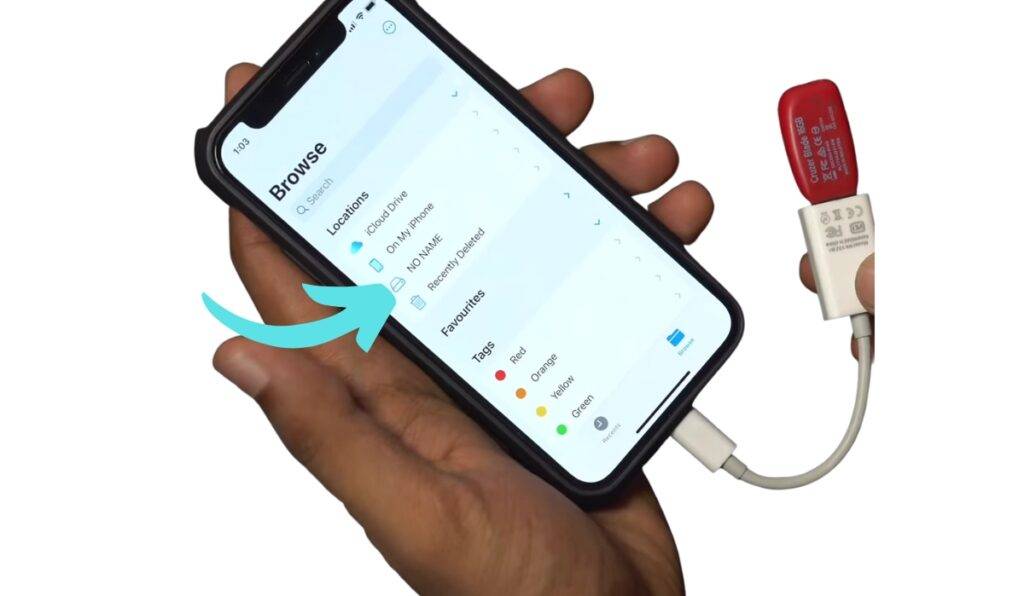
Step 4: Open the Files app on your device. In the Files app, navigate to the “Browse” tab.
Connect Pendrive to an iPhone 2

Step 5: Under the “Locations” menu in the Browse tab, you should see “USB STORAGE” listed if the USB device is successfully connected. Tap on it to access the files and folders on the USB storage device.

Now you can browse and manage the files on your USB storage device directly from your iPhone or iPad using the Files app.

Also Read:
  • How To Download Youtube Shorts On IPhone, Android, And Web
  • Best Teamviewer Alternative In 2023
  • 6 Best Omegle Alternatives In 2023

🔥 Good News - 70–50% OFF

We’re selling our Review units at unbelievable discounts (70–80% OFF). 👉 Don’t miss out – unbox.geekman.in
Check Offers

Share This Article
Facebook Pinterest Whatsapp Whatsapp LinkedIn Telegram
Share
What do you think?
Love3
Surprise0
Happy1
Sad0
Angry0
Cry0
ByMayur Dudharejiya
Follow:
Mayur Dudharejiya is known as the 'Geekman' on Youtube. He is the Admin and Executive Editor of Geekman. When he's not writing or making videos, then maybe he is working on a new Idea.
Leave a Comment Leave a Comment

Leave a Reply Cancel reply

Your email address will not be published. Required fields are marked *

Follow Us

2.5KLike
1.5KFollow
11KFollow
51KSubscribe

Geekman Trend

OPPO Enco Air 5 Pro Review: Good, But Not the Old Magic

Mayur Dudharejiya
02/06/2026

ROSESELSA EARFREE i5 Review: I Found IEM-Grade Sound in a ₹5,499 TWS

Mayur Dudharejiya
16/05/2026

Godrej AC Review 2026 : Best AC For Indian Homes, 5 Years Full Warranty

Mayur Dudharejiya
10/05/2026

Lloyd AC Review – Best Affordable AC in India

Anjali Bhatt
04/05/2026

AC Buying Guide India 2026: Read Before Buying AC in India!

Mayur Dudharejiya
03/05/2026
Geekman Unbox Banner

You Might also Like

How To Update Drivers On Windows 10
How To & Guides

How To Update Drivers On Windows 10, easiest way

3 Min Read
Check If Your Windows 10 PC & Laptop Will Get a Free Windows 11 Update
How To & Guides

How To Check If Your Windows 10 PC and Laptop Will Get a Free Windows 11 Update

3 Min Read
Whatsapp For Two-Factor Authentication instagram
How To & Guides

How To Use Whatsapp For Two-Factor Authentication On Instagram?

2 Min Read
LemonDuck 2
How To & GuidesNews

LemonDuck Malware: What Is It, and Why It’s Being Considered So Dangerous?

3 Min Read
Previous Next
Geekman mobile logo Geekman mobile logo

Geekman is the best source for the latest tech news, launches,
reviews, Gadgets unboxing & comparison.

Contact@geekman.in

Quick Link

  • About Us
  • Contact Us
  • Privacy Policy
  • Advertise With Geekman
  • Career
  • Press Kit
Advertise With Geekman
2.5KFollowersLike
1.5KFollowersFollow
11.3KFollowersFollow
43KSubscribersSubscribe

© 2024 Geekman.in. All Rights Reserved.

Welcome Back!

Sign in to your account

Username or Email Address
Password

Lost your password?

Watch on YouTube