


Short answer: buy the ASUS Chromebook CM1405 if your work is in a browser. Buy the HP 15s if you need Windows at the lowest price. Buy the Lenovo IdeaPad Slim 3 if you want a two year onsite warranty.
Geekman has covered consumer tech for over 10 years, and this ranking is built the way our buying guides always are: research first, then a hard look at the numbers. For every model we compared official specs, chip and memory, screen, weight, battery, software, price, warranty and service reach, and compared current prices across Indian retailers.
Find your laptop under 30000 in 3 quick taps
Short answer: the ASUS Chromebook CM1405 is best if your work is in a browser, the HP 15s is the cheapest Windows pick and the Lenovo IdeaPad Slim 3 has a two year onsite warranty. Turn on JavaScript to use the Finder.
Pick in 30 seconds
Which laptop under 30000 fits you?
If none of these rows sounds like you, read on. The ranking, the software guide and the full reviews follow, and the live prices sit under each review.
What changed in 2026
What ₹30,000 buys in 2026
Live prices on 24 October 2026 show a thin field at this budget. Under ₹30,000 you will mostly find Chromebooks, Android laptops, refurbished business laptops and Windows laptops with an old Celeron chip. New Windows laptops with a Core i3, Core 3 or Ryzen 3 chip have moved above this price. So this list is short and honest: five laptops, each good at one thing, with a clear note on what it cannot do. If you can spend more, my laptops under 35000 guide and laptops under 40000 guide open up much better chips. If you must spend less, see my laptops under 25000 guide.
The ranking
How I ranked these laptops
Each laptop gets a score out of 10 for performance (40%), value (40%) and service (20%). Performance looks at the chip, RAM, storage and screen. Value is price against what you get. Service looks at warranty and how easy it is to get help.
See the scores
| # | Laptop | Perf. | Value | Service | Overall |
|---|---|---|---|---|---|
| 1 | ASUS Chromebook CM1405 (Kompanio 540, 8GB, 128GB) | 6.6 | 7.4 | 7.0 | 7.0 |
| 2 | HP 15s (Celeron N4500, 8GB, 512GB) | 5.4 | 8.2 | 7.0 | 6.8 |
| 3 | ASUS Chromebook CM1505 (Kompanio 540, 4GB, 128GB) | 5.6 | 7.0 | 7.0 | 6.4 |
| 4 | Lenovo IdeaPad Slim 3 15IGL05 (Celeron N4020, 8GB, 256GB) | 4.6 | 6.8 | 8.0 | 6.2 |
| 5 | Primebook 2 Pro (Helio G99, 8GB, 128GB) | 5.4 | 6.6 | 6.5 | 6.1 |
Scores weigh performance 40%, value 40% and service 20%. They come from official specs and live prices on 24 October 2026.
Quick picks
| Pick | Laptop | Best for |
|---|---|---|
| Best Overall | ASUS Chromebook CM1405 (Kompanio 540, 8GB, 128GB) | The fastest and best built pick for web, study and office work, with 8GB and a Full HD screen for ₹28,990 |
| Best Windows Laptop | HP 15s (Celeron N4500, 8GB, 512GB) | The cheapest way to get Windows 11 with 8GB RAM and a 512GB SSD, from ₹22,500 |
| Best Big Screen For Less | ASUS Chromebook CM1505 (Kompanio 540, 4GB, 128GB) | A 15.6 inch Full HD Chromebook with a 50 Wh battery for ₹24,990 |
| Best For Onsite Service | Lenovo IdeaPad Slim 3 15IGL05 (Celeron N4020, 8GB, 256GB) | A Windows 11 laptop with Office listed and a two year onsite warranty for ₹27,990 |
| Best Android Laptop | Primebook 2 Pro (Helio G99, 8GB, 128GB) | An Android laptop with a 60 Wh battery and a Full HD IPS screen for ₹26,989 |
Tap a name to jump to its review. Live prices are in the buy box under each review. Prices are as seen on 24 October 2026 and bank offers can change them.
The software guide
ChromeOS, Windows or Android: which one should you pick?
At this price the operating system matters more than the chip. Decide this first, because it decides which laptops are even on your list.
ChromeOS (ASUS Chromebooks)
Fast and simple. Browser and Android apps only.
Windows (HP 15s, Lenovo Slim 3)
Runs every Windows program, but slowly.
Android (Primebook 2 Pro)
Great battery. Android apps, no Windows software.
Refurbished business laptops
Faster, but used. Buy from a trusted seller.
The reviews
Best laptops under 30000: 5 picks
Best Overall
1. ASUS Chromebook CM1405 (Kompanio 540, 8GB, 128GB)
7.0 Overall
6.6 Performance
7.4 Value
7.0 Service
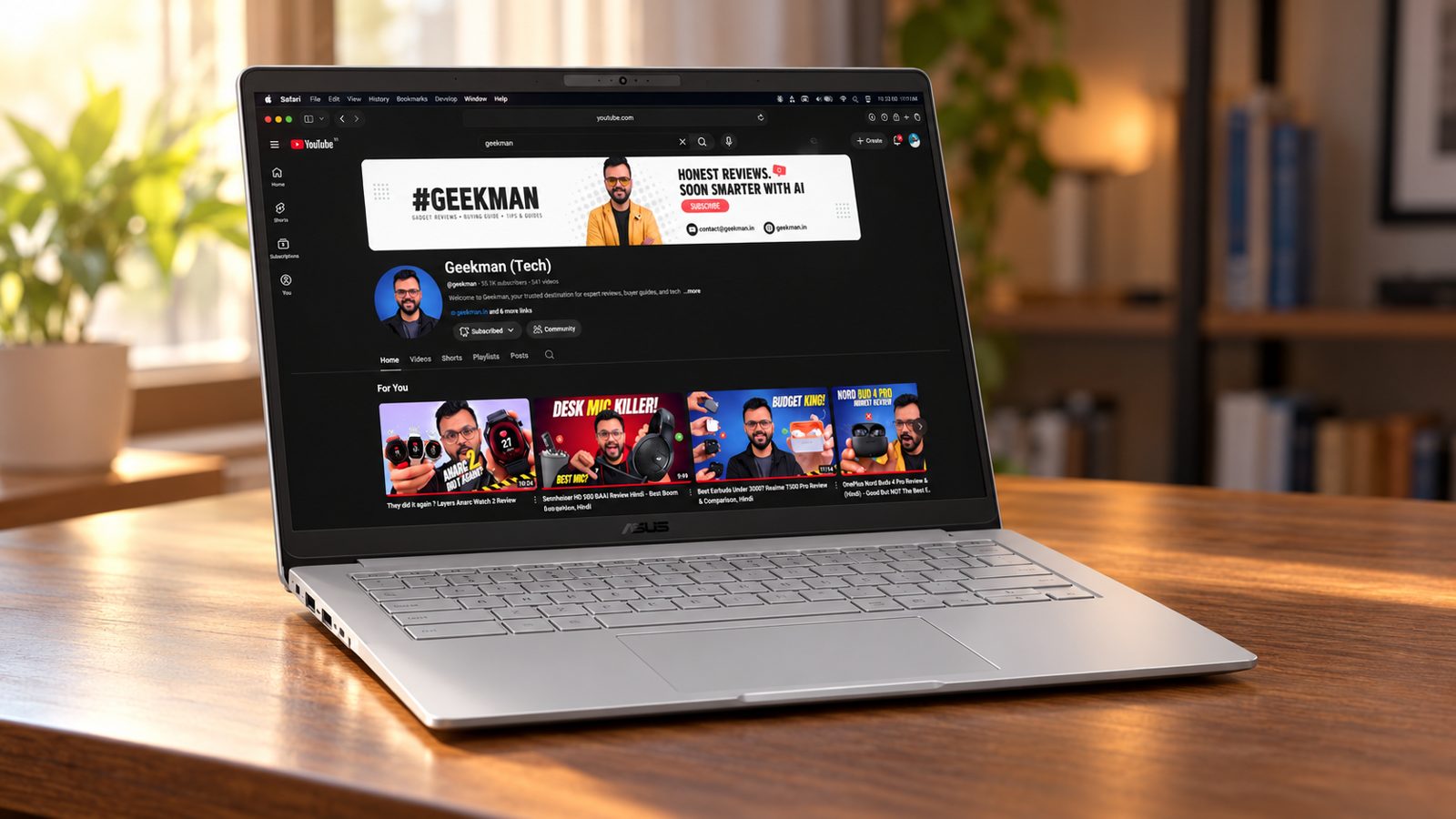
Kompanio 540, 8 cores · 8GB LPDDR5X · 128GB storage · 14 inch Full HD · 1.37 kg
Best for
✓ Students who work in the browser and Google Docs
✓ Online classes and video calls
✓ Anyone who wants a light laptop with a sharp screen
Not ideal for
– People who need Windows programs
– Anyone who wants to install heavy software
Verdict: The best laptop under ₹30,000 if you can live inside ChromeOS. It is quicker and better built than the Celeron Windows laptops.


ASUS Chromebook CM1405 (2026), Smartchoice, MediaTek Kompanio 540 Processor, 8GB RAM, 128GB SSD, FHD, 14"(35.5 cm), Chrome OS, Pure Grey, 1.37 Kg, CM1405CM4A-S60033, Thin & Light Laptop

Up to 3% instant discount on select HDFC Bank cards; cashback on Amazon Pay ICICI +1
- Up to 3% instant discount on select HDFC Bank cards; cashback on Amazon Pay ICICI
- No Cost EMI on select cards
Pros and cons
What we like
+ 8 core chip with 8GB RAM
+ Full HD 300 nit screen
+ 1.37 kg with two USB-C ports
What we don’t like
– No Windows programs
– eMMC storage, not upgradable
– Costs almost ₹30,000
ASUS Chromebook CM1405 Kompanio 540 8GB review: the best pick under Rs 30,000
The ASUS Chromebook CM1405 (Kompanio 540, 8GB, 128GB) is the laptop I would buy first at this price, and it is not a Windows machine. It runs ChromeOS on a MediaTek Kompanio 540 with 8 cores (Cortex-A78 and A55) at up to 2.6 GHz and Mali-G57 graphics. Memory is 8GB of LPDDR5X soldered on the board, and storage is 128GB of eMMC. The 14 inch screen is 1920 by 1080, anti glare, rated around 300 nits. The battery is 42 Wh with a 45 W USB-C charger, and the body weighs from 1.35 kg. It meets MIL-STD-810H tests, has a spill resistant keyboard, and ships with Wi-Fi 6 and Bluetooth 5.4.
My take: for a school or college student, a parent who lives in Chrome, or an office that runs on Google Docs and web apps, this beats every Windows laptop in this list on speed. It boots in seconds, never slows down with age the way a Celeron Windows laptop does, and 8GB is enough for many tabs. ChromeOS also runs Android apps from Google Play. What it cannot do is run Windows programs: no Tally desktop, no Photoshop, no old college software. Check the tools you need before buying. If everything you use works in a browser, this is the smartest Rs 30,000 you can spend, and it makes the Celeron Windows laptops here look dated.
ASUS Chromebook CM1405 running cost and the money angle
An 8 core Arm chip is built for efficiency. At about 12 W average draw for a 6 hour day over 300 days, the laptop uses around 22 units a year, roughly Rs 175 at Rs 8 a unit. That is under half of what a Celeron Windows laptop costs to run. The bigger saving is software. ChromeOS needs no antivirus subscription and no Windows licence, and Google Docs, Sheets and Slides are free. Add a Google One plan if you need cloud storage, because 128GB of eMMC is fine for apps but small for videos. Update support matters on a Chromebook: the 15.6 inch CM1505 in the same family lists updates until June 2036, so check your unit’s auto update date in Settings.
Living with the Chromebook CM1405: keyboard, screen and ports
The 14 inch full HD screen is a clear step up from the 1366 by 768 panels on the Windows laptops here, sharp for reading and video. Brightness is around 250 to 300 nits, which is fine indoors and dim outdoors. The chiclet keyboard has 1.35 mm of travel and is spill resistant, which suits a school bag. Ports are good for the class: two USB-C 3.2 ports that support charging and display output, one USB-A, HDMI 1.4 and a headphone jack. The webcam is 720p on some units and 1080p with a privacy shutter on others, so check the carton. Battery life is a real day of school or office work, and the laptop is fanless and silent.
ASUS Chromebook CM1405 warranty, updates and service in India
ASUS gives a one year warranty on laptops in India and runs more than 200 service centres, with support by phone, WhatsApp and the MyASUS app. Accidental damage cover, called ASUS Premium Care, is a paid extra, and I would take it for a Chromebook that goes to school, because drops and spills are not part of the standard warranty. On delivery, match the CPU, RAM and storage on the carton, because ASUS sells the same CM14 name with 4GB and 8GB, 64GB and 128GB, and touch and non touch screens. Sign in with a Google account, open Settings, About ChromeOS and note the auto update expiry date. Also check that Google Play apps work on first boot, and confirm that the box includes the 45 W charger.
Who should buy the ASUS Chromebook CM1405 and who should skip it
The shortfalls: no Windows software, 128GB of eMMC that cannot be upgraded, and a screen that is only moderately bright. The ASUS Chromebook CM1505 is the same idea with a larger 15.6 inch screen and a number pad, but only 4GB of memory in this version. The HP 15s runs Windows, which helps if you need desktop software, but its Celeron chip is far slower. Buy the Chromebook CM1405 if your work lives in a browser and Google apps and you want a fast, quiet and cheap laptop. Skip it if you need Windows programs, Microsoft Office desktop apps beyond the web versions, or serious photo and video editing.
Key specs
| CPU | MediaTek Kompanio 540, 8 cores, up to 2.6 GHz |
| Memory | 8GB LPDDR5X, onboard |
| Display | 14 inch Full HD, 1920×1080, 300 nits, anti glare |
| Storage | 128GB eMMC |
| OS | ChromeOS |
| Weight and battery | 1.37 kg, 42 Wh |
| Ports | 2 USB-C, 1 USB-A, HDMI 1.4, audio |
Best Windows Laptop
2. HP 15s (Celeron N4500, 8GB, 512GB)
6.8 Overall
5.4 Performance
8.2 Value
7.0 Service
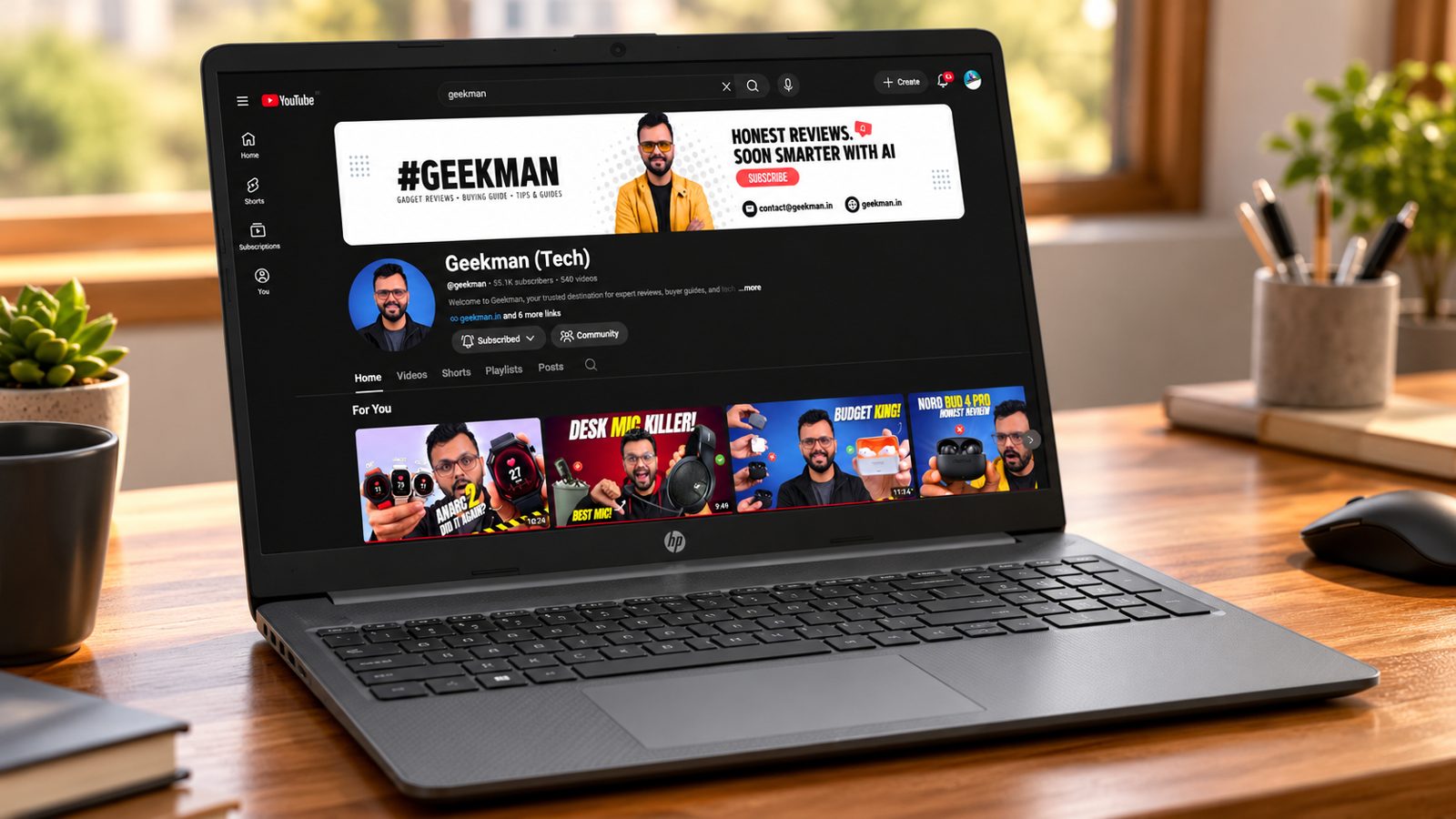
Celeron N4500 · 8GB DDR4 · 512GB SSD · 15.6 inch HD · 1.65 kg
Best for
✓ Buyers who need Windows programs on a tight budget
✓ Simple office, browsing and online classes
✓ People who want lots of storage
Not ideal for
– Anyone who multitasks heavily
– People who want a sharp screen
Verdict: Slow, but it is a real Windows laptop with 8GB and 512GB for the lowest price here.

HP Laptop 15s, Intel Celeron N4500, 15.6-inch (39.6 cm), HD, 8GB DDR4, 512GB SSD, Intel UHD Graphics, 720p HD Camera, Thin & Light, Dual Speakers (Win 11, Black, 1.65 kg), fq3066TU
Pros and cons
What we like
+ Windows 11 with 8GB and 512GB
+ Lowest price here
+ Fast NVMe SSD
What we don’t like
– 2 core Celeron
– HD screen
– 1.65 kg
HP 15s Celeron N4500 8GB 512GB review: Windows on a tight budget
The HP 15s with the Celeron N4500 is the Windows laptop for people who need Windows and have a strict budget. The processor has 2 cores and 2 threads, runs from 1.1 to 2.8 GHz at 6 W, and carries Intel UHD graphics with 16 execution units. Cinebench R23 multi core lands near 709 points. The HP 15s family has a 15.6 inch screen that is often 1366 by 768, rated 250 nits and 45 percent NTSC, a 41 Wh battery with fast charging to 50 percent in 45 minutes, a 45 W charger and a weight near 1.65 kg. This version pairs 8GB of RAM with a 512GB NVMe SSD, which is a generous amount of storage at the price.
My take: the Celeron N4500 is about 15 percent faster than the older N4020 in the Lenovo IdeaPad here, and that is the extent of the good news. It is a chip for browsing, email, video streaming, Word, simple Excel and online classes. It struggles when you open many tabs, run a video call and download updates at the same time. The 8GB of RAM helps, and the 512GB SSD makes boots and file opens snappy. If you need Windows for Tally, a billing tool, or college software, this is an acceptable low cost answer. If you can use a browser only, the ASUS Chromebook is a much faster, cheaper choice.
HP 15s Celeron running cost and where the money goes
Running cost is low. With a 6 W chip and a 15.6 inch screen, the laptop draws about 15 to 20 W in use. A 6 hour day over 300 days is about 32 units, roughly Rs 260 a year at Rs 8 a unit. The money you save on a cheap chip you may lose on time. A 512GB SSD is worth more than a faster processor for a small shop, because billing data, photos and documents fit comfortably. Many HP 15s units sold in India also bundle Microsoft Office Home, which can save a few thousand rupees, but check that the carton lists it. Avoid paying extra for a fancy bag or antivirus bundle, since Windows Defender is good enough.
Living with the HP 15s: screen, keyboard and ports
The screen is the weak point. At 1366 by 768, text looks coarse, a full web page needs scrolling and the 250 nits panel is dim in daylight. The keyboard is full size with a number pad, and the touchpad is fine for daily use. The port list is limited: two USB-A at 5 Gbps, one USB-C that is data only and cannot charge or drive a monitor, HDMI 1.4b, an SD card reader and a headphone jack. Wi-Fi is Wi-Fi 5, the webcam is 720p and the dual speakers are fine for calls. The fan is usually quiet because the chip runs at 6 W, but heavy tabs make the laptop slow before they make it hot.
HP 15s warranty, service and checks in India
HP gives a one year limited warranty on its 15s series. Some HP sites list it as parts and labour with no on-site repair, so ask the seller whether your unit has onsite or carry in service, and get it in writing. HP Care Packs add years and accidental damage cover as paid extras. Service goes through HP authorised centres, widespread in cities and thinner elsewhere, so check your pin code first. On delivery, confirm the carton reads Celeron N4500, 8GB and 512GB, because HP sells the 15s with 4GB and 256GB, and with Core i3 chips, under similar names. Check that Windows 11 is activated, look at the display resolution in Settings, and run Windows Update before you start using it.
Who should buy the HP 15s and who should skip it
It falls short on speed, on the low resolution screen, on ports and on build, which is plastic with some flex. The ASUS Chromebook CM1405 is much faster, has a sharper screen and costs about the same, but it does not run Windows software. The Lenovo IdeaPad Slim 3 has an older Celeron and a smaller SSD, so the HP is the better Windows pick. Buy the HP 15s if you must have Windows for a few specific programs and want plenty of storage. Skip it if your tasks fit in a browser, if you open many tabs, or if you want a sharper screen.
Key specs
| CPU | Intel Celeron N4500, 2 cores, 2 threads |
| Memory | 8GB DDR4 |
| Display | 15.6 inch HD, 1366×768, BrightView |
| Storage | 512GB PCIe NVMe SSD |
| OS | Windows 11 Home |
| Weight and battery | 1.65 kg, 41 Wh, up to 8h15m claimed |
| Camera | 720p HD with dual speakers |
Best Big Screen For Less
3. ASUS Chromebook CM1505 (Kompanio 540, 4GB, 128GB)
6.4 Overall
5.6 Performance
7.0 Value
7.0 Service
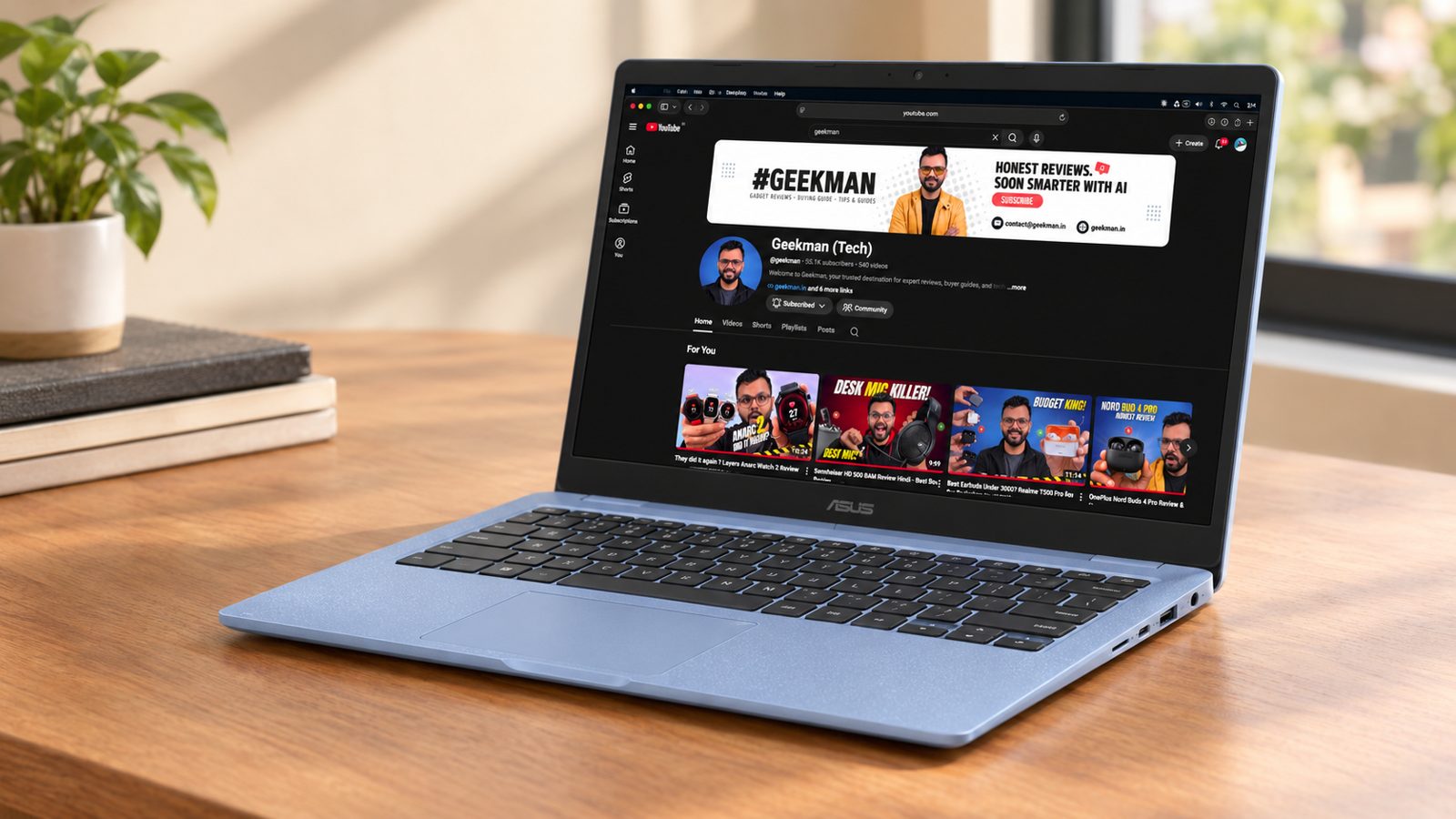
Kompanio 540 · 4GB LPDDR5X · 128GB storage · 15.6 inch Full HD · 50 Wh
Best for
✓ People who want a bigger screen
✓ Light browsing and online classes
✓ Anyone saving ₹4,000 over the CM1405
Not ideal for
– Anyone who opens many browser tabs
– People who want to carry it all day
Verdict: A good big screen for the money, but 4GB of RAM limits how many tabs you can keep open.
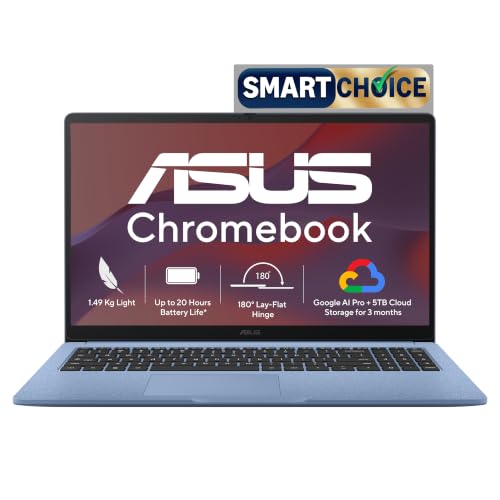
ASUS Chromebook CM1505 (2026), Smartchoice, MediaTek Kompanio 540 Processor, 4GB RAM, 128GB SSD, FHD, 15.6"(39.6 cm), 60Hz, Chrome OS, Fabric Blue, 1.49 Kg, CM1505CM4A-S70081, Thin & Light Laptop
Mega Festival Deal Up to 3% instant discount on select HDFC Bank cards; cashback on Amazon Pay ICICI +1
- Up to 3% instant discount on select HDFC Bank cards; cashback on Amazon Pay ICICI
- No Cost EMI on select cards
Pros and cons
What we like
+ 15.6 inch Full HD screen
+ 50 Wh battery
+ Two USB-C ports
What we don’t like
– 4GB RAM
– ChromeOS only
– Heavier than the CM1405
ASUS Chromebook CM1505 Kompanio 540 4GB review: the big screen Chromebook
The ASUS Chromebook CM1505 (Kompanio 540, 4GB, 128GB) is the same Arm chip as the CM1405 in a bigger body. The 15.6 inch screen is a 1920 by 1080 IPS anti glare panel at 60 Hz, rated 300 nits. Memory is 4GB of soldered LPDDR5X and storage is 128GB of eMMC with no microSD slot. The battery is 42 Wh, rated by ASUS for up to 12 hours, with a 45 W USB-C charger. Weight is about 1.6 kg. The keyboard has a numeric keypad but no backlight, and the webcam is 720p with a privacy shutter. Ports are two USB-C 3.2 with display and power delivery, one USB-A and HDMI 1.4. Wi-Fi 6E and Bluetooth 5.4 are supported.
My take: the big screen and the number pad are the attractions, especially for accounts work, spreadsheets, online exam preparation and an elderly user who wants larger text. The problem is the 4GB. ChromeOS handles memory better than Windows, but with many tabs, a video call and Android apps the 4GB runs out and tabs reload. I would call this a light use machine: documents, video streaming, a handful of tabs and Zoom. If you can, stretch to the 8GB CM1405 or an 8GB version of this model, because memory is soldered and cannot be added later. Do not buy it for a student who multitasks heavily.
ASUS Chromebook CM1505 running cost and the money angle
At about 13 W for a 6 hour day over 300 days, the laptop uses roughly 23 units a year, around Rs 190 at Rs 8 a unit. The 15.6 inch body costs a little more than the 14 inch, and the money angle is the memory. If your budget is tight, 4GB can feel fine for the first six months and then frustrating. A Chromebook has no licence or antivirus costs, so the saving over Windows continues for years. The CM1505 lists auto updates until June 2036, so the laptop can be used for a long time as a simple machine. A Google One storage plan makes the 128GB drive less of a limit for photos.
Living with the Chromebook CM1505: screen, keyboard and speakers
The 15.6 inch IPS screen is bright enough indoors and clear, with the wide viewing angles that a TN panel lacks. The keyboard is full size with a number pad, though the keys have shallow travel and no backlight, so evening typing is harder. The touchpad is good. Ports sit on the left edge, which can crowd a mouse cable. The 720p camera is only fine for calls in good light, and the privacy shutter is a nice touch. The speakers are small. With no fan, the laptop is silent. At 1.6 kg it is easy to carry from room to room but is not a laptop to carry all day. The hinge holds the lid steady on a desk, and the matte coating keeps window glare down in a bright room. For a shared family laptop, that large screen is what people will notice first.
ASUS Chromebook CM1505 warranty and service in India
ASUS gives a one year warranty in India, with more than 200 service centres, a toll free line, WhatsApp support and the MyASUS app. Accidental damage cover is sold as ASUS Premium Care and is not part of the standard warranty, so for a child’s laptop it is worth considering. On delivery, check the carton for Kompanio 540, the RAM and the storage, because ASUS sells the CM15 with 4GB and 8GB. Open ChromeOS Settings to see the auto update date, and make sure Google Play works. If the seller offers an exchange, test the keyboard and the USB-C ports before you accept the box. Keep the invoice for any warranty claim.
Who should buy the ASUS Chromebook CM1505 and who should skip it
It falls short on memory, on keyboard backlight, on storage, and on Windows software. The ASUS Chromebook CM1405 has 8GB, a lighter 14 inch body and fits most people better. The Lenovo IdeaPad Slim 3 gives Windows and a bigger SSD, but a much slower processor. Buy the CM1505 if you want a large screen with a number pad for light browser work and documents. Skip it if you multitask, if you need desktop Windows software, or if you can afford the 8GB model.
Key specs
| CPU | MediaTek Kompanio 540, 8 cores |
| Memory | 4GB LPDDR5X, onboard |
| Display | 15.6 inch Full HD, 300 nits, 60Hz |
| Storage | 128GB eMMC |
| OS | ChromeOS |
| Weight and battery | 1.49 kg, 50 Wh |
| Ports | 2 USB-C, 1 USB-A, HDMI 1.4, audio |
Best For Onsite Service
4. Lenovo IdeaPad Slim 3 15IGL05 (Celeron N4020, 8GB, 256GB)
6.2 Overall
4.6 Performance
6.8 Value
8.0 Service
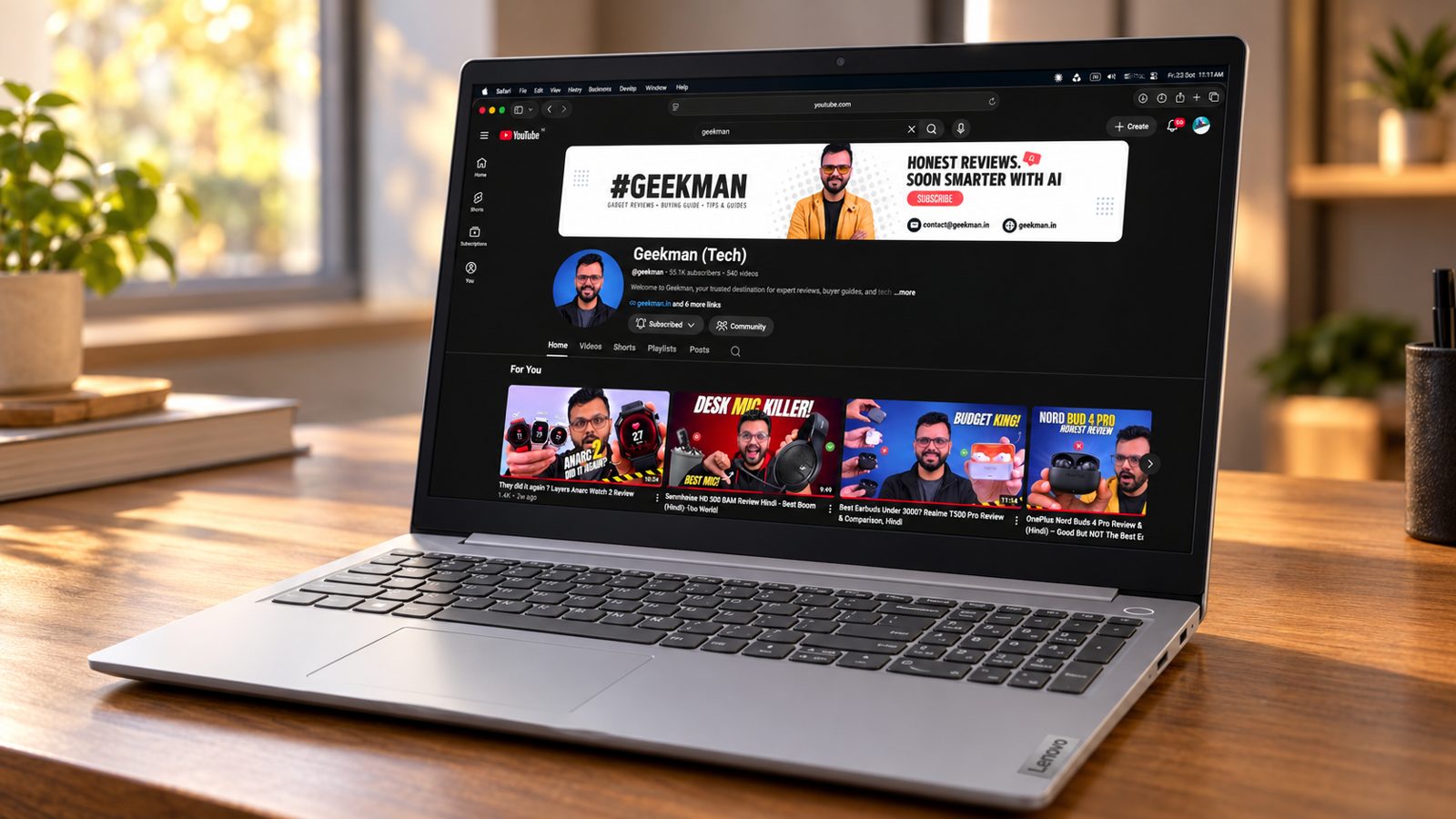
Celeron N4020 · 8GB DDR4 · 256GB SSD · 15.6 inch HD TN · 2 yr onsite
Best for
✓ Buyers who want a long onsite warranty
✓ Light work and school use
✓ People who want Office included
Not ideal for
– Anyone who wants speed
– People who want a good screen
Verdict: It is slow and the screen is basic, but the two year onsite warranty is rare at this price.
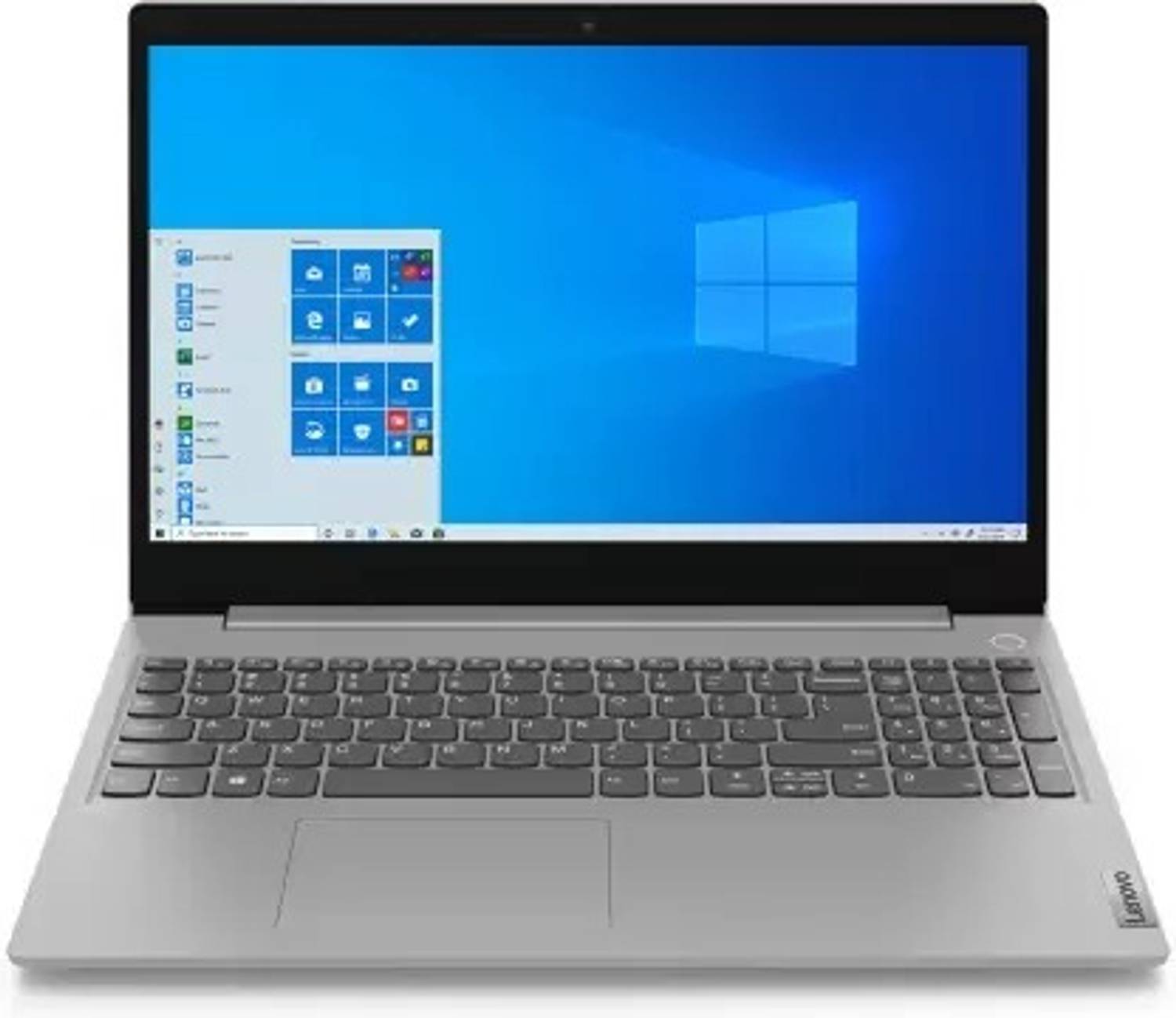
Lenovo IdeaPad Slim 3 Intel Intel Celeron Dual Core N4020 - (8 GB/256 GB SSD/Windows 11 Home) 15IGL05 Thin and Light Laptop

Up to 5% instant discount on Flipkart SBI & Flipkart Axis cards Details
- Up to 5% instant discount on Flipkart SBI & Flipkart Axis cards
Pros and cons
What we like
+ 2 year onsite warranty
+ Windows 11 with Office listed
+ 8GB RAM
What we don’t like
– Oldest, slowest chip
– HD TN screen
– About 1.85 kg
Lenovo IdeaPad Slim 3 15IGL05 Celeron N4020 8GB review: the old stock buy
The Lenovo IdeaPad Slim 3 15IGL05 with the Celeron N4020 is the oldest design in this list. The processor is a 2 core, 2 thread chip running from 1.1 to 2.8 GHz with Intel UHD Graphics 600, and Cinebench R23 multi core lands near 616. Memory is 8GB of DDR4-2400, storage is a 256GB NVMe SSD, and the 15.6 inch matte screen is often 1366 by 768. The battery is 35 Wh and the weight is about 1.7 kg. Ports are a USB 2.0, two USB 3.1 Gen 1, HDMI, an SD card reader and a headphone jack. There is no USB-C, and the webcam is only 0.3 MP. Wi-Fi is Wi-Fi 5 and Bluetooth 5.0.
My take: I find it hard to recommend this design in 2026 unless the price is far below the others. The chip is slow, the screen has a low resolution, and the lack of a USB-C port means you cannot use a modern phone charger or a USB-C display. Its one strength is its size and its SD card reader, which suits someone who moves photos from a camera. For a child who only needs a simple Windows laptop for typing, it works. For anyone who multitasks, a Chromebook or a newer HP is better. Treat this as a second laptop for light jobs, not a main machine.
Lenovo IdeaPad Slim 3 15IGL05 running cost and value
With a low power chip and a 35 Wh battery, the laptop uses about 15 W in use. A 6 hour day over 300 days uses about 27 units, roughly Rs 215 a year at Rs 8 a unit. The better money question is age. A design from 2020 gets fewer driver and BIOS updates, and an old battery may hold only a few hours of charge. If you buy new stock, check the manufacture date on the carton label. An 8GB and 256GB version is a decent spec for the price, and a cheap external SSD fixes the storage. Do not spend money on upgrades, because the whole platform is the limit.
Living with the IdeaPad Slim 3: display, keyboard and webcam
The matte screen cuts reflections, but 1366 by 768 on a 15.6 inch panel looks coarse, with visible pixels in text. Colour and brightness are basic. The keyboard is a chiclet design with a number pad, comfortable but without a backlight. The 0.3 MP webcam is poor, so video calls look soft, which matters for online classes. Stereo speakers are fine for a room. The fan runs quietly in light use. The plastic body is thick and heavy for a modern laptop. The 35 Wh battery gives about four to six hours of light use in practice, below the long figure Lenovo claims, so carry the charger.
Lenovo IdeaPad Slim 3 15IGL05 warranty and service in India
Lenovo gives a one year base warranty, and consumer support in India is on 1800-419-7555, Monday to Saturday. Extended warranty and accidental damage cover are paid extras. Ask the seller whether your unit has carry in or onsite service, and get it in writing. Because this is an older model, confirm the warranty start date matches your purchase date and not the factory date, since old stock can arrive with part of the warranty used. On delivery, match the CPU, RAM and storage on the carton: it should read Celeron N4020, 8GB and 256GB. Check whether Windows 11 is installed and activated, and run Windows Update fully before you use it.
Who should buy the Lenovo IdeaPad Slim 3 and who should skip it
It falls short on its old chip, its low resolution screen, no USB-C, a poor webcam and a heavy body. The HP 15s has a newer Celeron N4500, a bigger SSD and a USB-C port, even if it is data only. The ASUS Chromebook CM1405 is much faster and has a full HD screen. Buy the IdeaPad Slim 3 only if the price is clearly below the HP and you need a simple Windows laptop for typing. Skip it if you want a laptop that lasts several years, a good webcam for classes, or any speed.
Key specs
| CPU | Intel Celeron N4020, 2 cores, up to 2.8 GHz |
| Memory | 8GB DDR4 |
| Display | 15.6 inch HD TN, 1366×768, 220 nits |
| Storage | 256GB SSD |
| OS | Windows 11 Home, Office provided |
| Weight and battery | About 1.85 kg, up to 14 hours claimed |
| Warranty | 2 years onsite |
Best Android Laptop
5. Primebook 2 Pro (Helio G99, 8GB, 128GB)
6.1 Overall
5.4 Performance
6.6 Value
6.5 Service
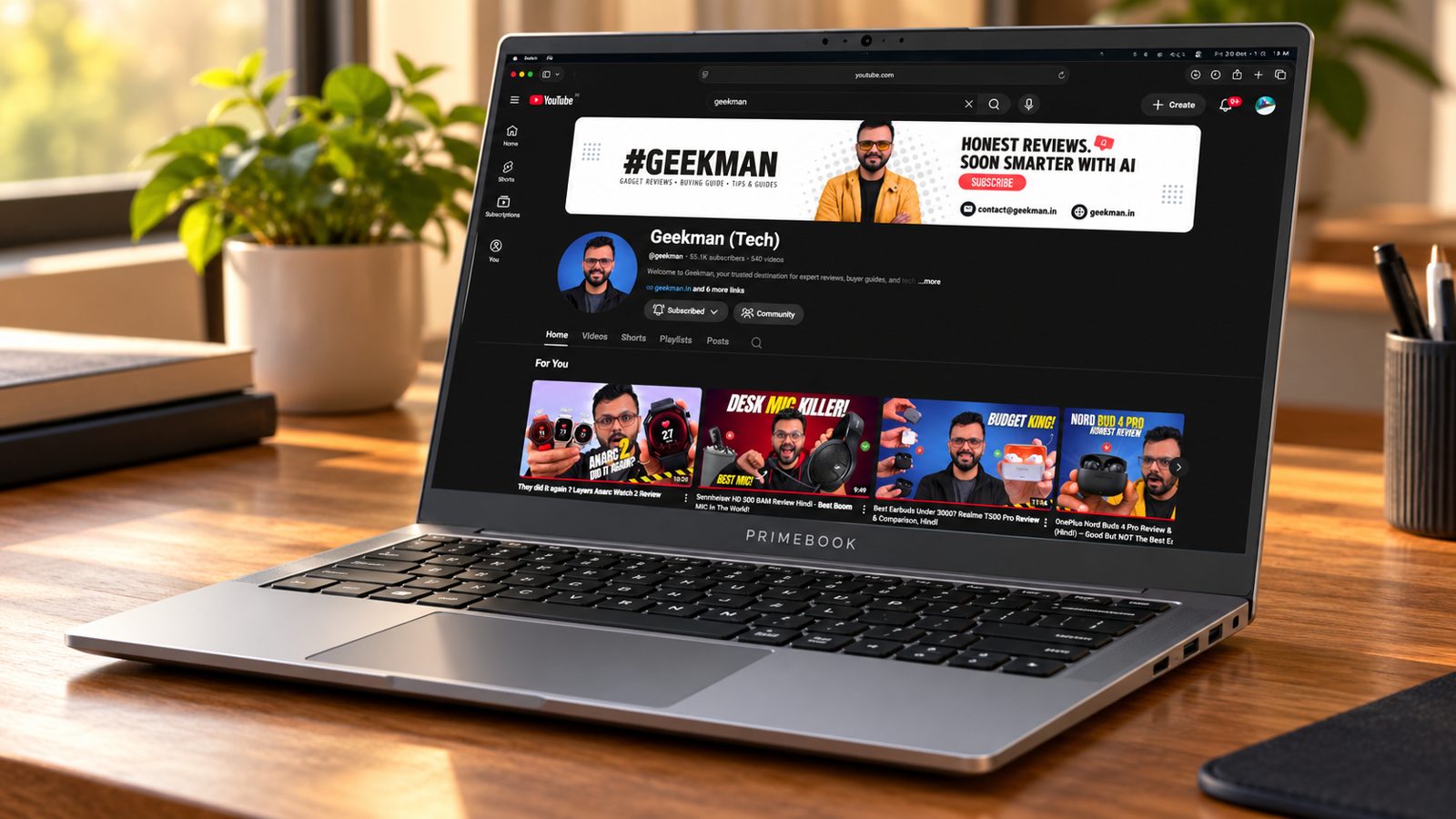
Helio G99 · 8GB LPDDR4X · 128GB UFS · 14.1 inch Full HD IPS · 60.3 Wh
Best for
✓ People who love Android apps
✓ Long battery and a sharp IPS screen
✓ Video calls, study and media
Not ideal for
– Anyone who needs Windows or Mac software
– People who want a familiar desktop
Verdict: A fun, light laptop for Android apps. It is not a Windows laptop, so check your software first.
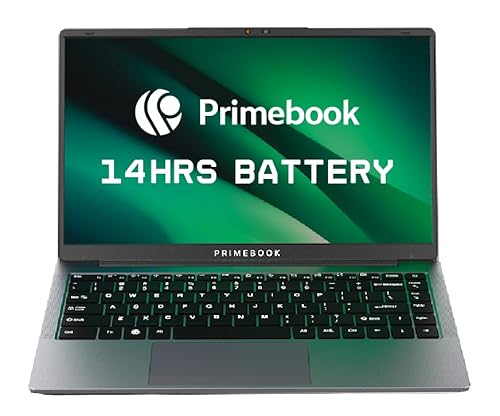
Primebook 2 Pro (2026) in-Built AI MediaTek Helio G99 (MT8781) - (8 GB/128 GB/Android 15) PBG9914128#4278C Laptop
Lowest price
Up to 3% instant discount on select HDFC Bank cards; cashback on Amazon Pay ICICI +1
- Up to 3% instant discount on select HDFC Bank cards; cashback on Amazon Pay ICICI
- No Cost EMI on select cards
Up to 5% instant discount on Flipkart SBI & Flipkart Axis cards Details
- Up to 5% instant discount on Flipkart SBI & Flipkart Axis cards
Pros and cons
What we like
+ Full HD IPS screen
+ 60.3 Wh battery with fast charging
+ microSD slot for storage
What we don’t like
– No Windows programs
– Newer brand, smaller service network
– Android on a laptop is a different experience
Primebook 2 Pro Helio G99 8GB review: the Android laptop explained
The Primebook 2 Pro (Helio G99, 8GB, 128GB) is not a Windows laptop or a Chromebook. It runs PrimeOS 3.0, built on Android 15, on a MediaTek Helio G99 phone chip with 8GB of RAM and 128GB of storage. The 14.1 inch screen is a matte full HD IPS panel with small bezels. The battery is a large 60.3 Wh unit, and charging is slow, with about 24 percent in 23 minutes and roughly 2 hours 20 minutes for a full charge. Ports are three USB-A, a USB-C, a microSD slot and a headphone jack. The camera has a privacy slider and the laptop has four speakers.
My take: it is a clever idea with real limits. A sibling model with the same chip measured Geekbench 6 near 703 single and 1,651 multi, which is phone class speed and far below a Ryzen or a Core i5. Light Android apps, video streaming, Gmail and Google Sheets run smoothly, and Android games can be mapped to the keyboard. Heavy multitasking lags. It is best as a battery friendly second laptop for a student’s notes, videos and web browsing. If your college expects Windows software, or you need a normal file system, a Chromebook or a Windows laptop will fit better.
Primebook 2 Pro battery, running cost and the money angle
The battery is the strongest part: a 60.3 Wh cell, about 7 to 8 hours of real work in one hands on test and far more in standby. A full charge is about 0.06 kWh, so running cost is around 50 paise a charge at Rs 8 a unit, or Rs 150 a year. The money angle is software. PrimeOS includes Android apps, but the app library is limited, and some tools you expect, such as a full desktop browser experience and a simple file manager, behave differently. Charging works only with the bundled USB-C adapter, so keep it safe, because replacing a proprietary style charger costs money and time. There is no Windows licence cost, which keeps the price low. Compare the final price with a Chromebook before paying, since the ASUS gives you a faster chip for similar money.
Living with the Primebook 2 Pro: software, keyboard and display
The software needs patience. WhatsApp Web can be slow to load messages, inactive browser tabs are frozen to save memory, and the file system uses a media picker instead of a normal Downloads folder. Copying files from a pen drive to internal storage is not simple. The matte IPS screen is a highlight, with wide viewing angles and a good full HD picture. The keyboard has large keys with shallow travel and a little deck flex in the middle, which is acceptable for the price. The trackpad is large and easy to use. The speakers are good enough for videos in a quiet room. Updates are the open question, so ask the maker how long they will continue. Android style multitasking works through window snapping and a task manager, so two apps can sit side by side. Do not expect desktop class tools, and test the apps you rely on during the first week.
Primebook 2 Pro warranty, software updates and service in India
Primebook is a newer Indian brand that sells online, so ask for the warranty terms and service route in writing before you buy. Ask how long OS updates will continue, which centre handles repairs in your city, and what happens if the charger fails, since it is the only charger that works. Check the box for the exact version: Helio G99, 8GB RAM and 128GB storage, and confirm the PrimeOS version on first boot. Test the Wi-Fi, the keyboard and the USB-A ports on the first day, and keep the invoice. A warranty at a service centre is only as good as the centre near you, so look for one first.
Who should buy the Primebook 2 Pro and who should skip it
It falls short on app compatibility, software polish, slow charging with a single charger, and raw speed. The ASUS Chromebook CM1405 has a faster chip, a proven ChromeOS and Google’s long update promise. The HP 15s runs real Windows software, though slowly. Buy the Primebook 2 Pro if you want a long lasting laptop for browsing, videos and Android apps, and you like trying new things. Skip it if you need Windows programs, a normal file system, dependable software updates or heavy multitasking.
Key specs
| CPU | MediaTek Helio G99, 8 cores, up to 2.2 GHz |
| Memory | 8GB LPDDR4X |
| Display | 14.1 inch Full HD IPS, 250 nits, anti glare |
| Storage | 128GB UFS, microSD up to 1TB |
| OS | PrimeOS 3.0 (Android 15) |
| Weight and battery | 60.3 Wh, 36W fast charging |
| Ports | 2 USB-A, USB-C, microSD, audio |
Questions other guides skip
The questions most laptop lists leave out
These are the questions buyers keep asking about these exact laptops, and the lists I read rarely answer them. Each price was checked on 24 October 2026.
1 · Is a Chromebook really better than a Windows laptop at this price?
For speed, yes. The ASUS Chromebooks use an 8 core chip and Full HD screens, while the Windows laptops here use 2 core Celeron chips and HD screens. The price you pay is software. Windows programs will not run on a Chromebook.
2 · Which laptop is best for online classes and college work?
The ASUS Chromebook CM1405 if your college uses Google Classroom, Zoom, Meet and web tools. If you need a specific Windows program such as a design or accounting tool, take the HP 15s and check the program works on a Celeron chip first.
3 · Is 4GB RAM on the Chromebook CM1505 enough?
For a few tabs and Google Docs, yes. With many tabs, a video call and a YouTube video together, you will feel it. The CM1405 with 8GB costs ₹4,000 more and is the safer buy.
4 · Why does the HP 15s cost ₹22,500 when the Slim 3 costs ₹27,990?
The HP 15s has a faster N4500 chip, double the storage at 512GB and a faster SSD. The Lenovo has an older N4020 chip but a two year onsite warranty. Pick the HP for speed and storage and the Lenovo for service.
5 · Is a refurbished ThinkPad or Latitude a better buy at ₹25,000?
A used Core i5 business laptop is usually much faster than a new Celeron. The risks are battery wear, a tired keyboard and a seller with no proper warranty. Check the seller return policy, and avoid offers that ship Windows 10 on old chips, because Windows 10 stopped getting free security updates in October 2025.
6 · Can I use an Android laptop like the Primebook for college?
If your college work is in Google Docs, Zoom, PDFs and web tools, yes. If your syllabus needs a Windows or Mac program, no. Ask your college before you buy.
7 · Will these laptops get software updates?
Chromebooks get automatic ChromeOS updates, and no end date is printed for these models, so check the update policy on the maker page. Windows 11 on the HP and the Lenovo gets updates from Microsoft.
8 · Can I use Microsoft Office on a Chromebook?
Yes, in a limited way. The web versions of Word, Excel and PowerPoint work in the browser, and the Android apps run on many models. They cover basic documents. If you need advanced features, macros or heavy Excel work, a Windows laptop is the safer choice.
9 · Is 256GB of storage enough on a Windows laptop?
For a student, yes, if you keep large files in cloud storage. Windows and updates take a good chunk, and downloads fill the rest. A second SSD slot or an external drive helps. If you store photos and videos locally, take 512GB.
10 · Will a cheap Windows laptop get slow after a year?
It can, mostly because of full storage and too many startup apps. Keep at least 20 percent of the drive free, remove software you do not use and avoid trial antivirus packs. Eight GB of RAM keeps it responsive for longer than 4GB.
What this means for your buying decision
You work in the browser: the ASUS Chromebook CM1405.
You need Windows at the lowest price: the HP 15s.
You want a big screen for less: the ASUS Chromebook CM1505.
You want a long onsite warranty: the Lenovo IdeaPad Slim 3.
You love Android apps and want a long battery: the Primebook 2 Pro.
You want a Chromebook only: see my best Chromebooks in India guide.
You are a student: read my laptops for students guide.
Compare all 5 laptops at a glance
| Laptop | CPU | RAM | Screen | OS | Price |
|---|---|---|---|---|---|
| ASUS Chromebook CM1405 | Kompanio 540, 8 cores | 8GB | 14 inch Full HD | ChromeOS | ₹28,990 |
| HP 15s | Celeron N4500, 2 cores | 8GB DDR4 | 15.6 inch HD | Windows 11 | ₹22,500 |
| ASUS Chromebook CM1505 | Kompanio 540, 8 cores | 4GB | 15.6 inch Full HD | ChromeOS | ₹24,990 |
| Lenovo IdeaPad Slim 3 | Celeron N4020, 2 cores | 8GB DDR4 | 15.6 inch HD TN | Windows 11 | ₹27,990 |
| Primebook 2 Pro | Helio G99, 8 cores | 8GB | 14.1 inch Full HD IPS | PrimeOS (Android) | ₹26,989 to ₹27,990 |
Specs are from official maker specs as of October 2026. Prices were seen on 24 October 2026 and move daily. Verify the exact variant before you buy.
The buying guide
How to choose a laptop under 30000
Software
Check that your programs run on the OS.
Processor
Cores matter. Avoid 2 core chips if you can.
RAM
8GB is the floor in 2026.
Screen
Full HD over HD. IPS over TN.
Battery
Look at Wh, not claims.
Warranty
Onsite beats carry in. Keep the invoice.
1 · Software first
Write down the programs you must run. If any of them is a Windows .exe file, a Chromebook and an Android laptop are out. If they are all web tools, a Chromebook is the best value.
2 · Processor
The 8 core Kompanio 540 and Helio G99 chips feel snappier than a 2 core Celeron, even though they are not Intel or AMD. Windows needs more power than ChromeOS, so Celeron Windows laptops feel the slowest.
3 · RAM and storage
8GB is the floor. The HP 15s has a 512GB SSD, the Lenovo has 256GB, and the Chromebooks have 128GB of eMMC, which is fine for web work.
4 · Screen
The two Chromebooks and the Primebook have Full HD screens. The HP 15s and the Lenovo have HD screens at 1366 by 768, and the Lenovo uses a TN panel.
5 · Battery
The Primebook has 60.3 Wh, the Chromebook CM1505 50 Wh, the CM1405 42 Wh and the HP 15s 41 Wh. Bigger is better, but the chip and the screen change the real result.
6 · Warranty and service
The Lenovo lists two years onsite and the Primebook one year onsite. For the others, check the box and the invoice. Register the laptop on day one.
Other laptops in the lineup
Neopticon BrowseBook (Celeron N4020). It sells from about ₹26,800 to ₹28,990, but the screen size and brand support vary between sellers, so we kept it out.
HP Chromebook 14 (4GB, 128GB). It costs ₹22,990 to ₹25,990, has an HD screen and is a decent alternative to the ASUS CM1505.
Primebook 2 Max. It is a bigger 15.6 inch version of the Primebook at ₹27,990 to ₹29,990.
Acer Aspire 3 and Aspire One with Celeron N4500. They are listed from about ₹34,400, which is above this budget.
Refurbished ThinkPads, Dell Latitudes and HP EliteBooks. Many are listed from ₹23,500 to ₹29,500. They are faster than new Celeron laptops, but they are used, so I do not rank them.
Avita Pura S101. A Celeron laptop at about ₹29,767 with little to separate it from the HP 15s.
The verdict
Which laptop under 30000 should you buy?
Best overall: ASUS Chromebook CM1405, at ₹28,990. Check price
Best Windows laptop: HP 15s, at about ₹22,500. Check price
Best big screen for less: ASUS Chromebook CM1505, at ₹24,990. Check price
Best for onsite service: Lenovo IdeaPad Slim 3, at ₹27,990. Check price
Best Android laptop: Primebook 2 Pro, from ₹26,989. Check price
Not sure? Buy the ASUS Chromebook CM1405 if your work is on the web, and the HP 15s if you need Windows.
More buying guides from Geekman
Laptops under 30000 FAQ
Which is the best laptop under ₹30,000 in India in 2026?
The ASUS Chromebook CM1405 with 8GB RAM and a Full HD screen at ₹28,990 is the best overall if you can use ChromeOS. If you need Windows, the HP 15s with 8GB and a 512GB SSD at about ₹22,500 is the cheapest real option.
Chromebook or Windows laptop under 30000: which should I buy?
Buy a Chromebook if your work is in the browser, Google Docs and online classes. Buy Windows only if you need Windows programs. At this price the Windows laptops have Celeron chips that are much slower than a Chromebook.
Can I use Microsoft Office on a Chromebook?
Yes, in the browser through Microsoft 365 for the web or with the Android apps. You cannot install the desktop version of Office. Google Docs and Sheets work best, and they open most Office files.
Is the Celeron N4500 good enough?
For light work, yes. It has 2 cores, so Windows with a browser, Office and a video call is fine, but it slows down fast when you add more. The HP 15s helps with 8GB of RAM and an SSD.
Is the screen on the HP 15s Full HD?
No. The HP 15s has an HD screen at 1366 by 768. Text looks softer than on the Full HD screens of the two ASUS Chromebooks.
Can the Primebook 2 Pro run Windows software?
No. It runs PrimeOS, which is based on Android 15. It runs Android apps and web apps, not .exe programs. Check that your college or office software has an Android or web version.
Is a refurbished ThinkPad or Dell Latitude better than a new Celeron laptop?
Often yes for speed, because a used business laptop with a Core i5 is far faster. The risks are battery wear and seller quality. Windows 10 stopped getting free security updates in October 2025, so skip an offer that sells Windows 10 on a chip that cannot officially upgrade to Windows 11.
Can I upgrade the RAM on these laptops?
Not on the Chromebooks, because the memory is soldered. The Primebook is also onboard. Upgrade limits are not printed for the HP 15s and the Lenovo Slim 3, so buy the RAM you need on day one.
Is the Chromebook battery claim of 20 hours real?
ASUS shows up to 20 hours in a best case test. Expect a full day of normal use from the 42 Wh and 50 Wh batteries, and less with a bright screen and video calls.
Can I game or code on these laptops?
Not seriously. They have no graphics card. ChromeOS can run a Linux environment for basic coding, but a Windows laptop with more power is a better choice. For gaming see my guide to gaming laptops.
Should I stretch my budget to ₹35,000?
If you can, yes. A little more money gets you a faster chip and a better screen. See my guide to laptops under ₹35,000 before you decide.


Hello sir which is best processor I am confuse RYZEN 3 VS INTEL 3 Plezz reply
Bro Asus x507 ka build quality kesa hai?
A6a he… price ke hisab se….
From this which is best for gaming???
HP 15q-dy0004AU 2018 launch 27990₹ m…or ab price h 29990…i want to purchase…then suggest me…can i purchase now…or wait some days??
Bhai abho recent ka update do
under 30k
What about acer aspire 5
can you suggest about acer swift 3. would it be a good choice.